
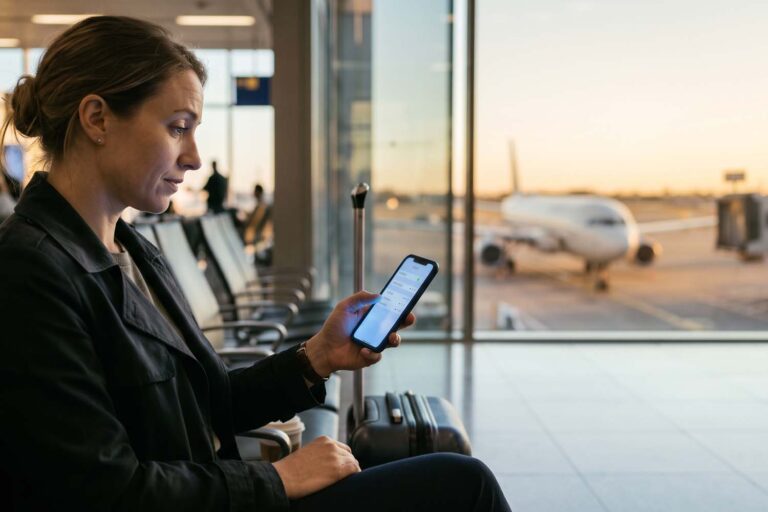
You’ve just gotten off a long flight and your phone reconnects. Among the other networks on your screen, you notice one named “Free Airport WiFi.” You connect, check your email, search for your hotel reservation, and reply to a work message while you wait for your bags.
It seems harmless, even handy. Airports, hotels, coffee shops, and trade centers all offer free Wi-Fi so travelers can stay connected. But within minutes, you may start to wonder who else is on that network and whether it was the right one to join.
Sit back, relax, and don’t write off public Wi-Fi just yet. Travel Wi-Fi does come with a few more risks than your connection at home, but knowing what to look for and taking a few simple precautions can keep being online on the move from turning into a hassle.
How Shared Networks Are Different from Your Home Wi-Fi
At home, you generally know where your connection comes from, what the password is, who can access your network, and how it’s set up.
Public networks are a different story. Hundreds or even thousands of people may use the airport, hotel, or coffee shop network. You have no way of knowing how it’s configured, who owns it, or how often its security is checked.
Another difference is that network names are displayed in plain view to everyone nearby. A genuine hotel might have a network named “Hotel Guest WiFi,” while someone else could create a network with an almost identical name.
That type of imposter network is known as an evil twin network. Once you connect, it can look and feel just like the real one.
Public Wi-Fi doesn’t have to be the enemy of your digital world.
The issue is that not all public networks are dangerous. In fact, many venues take real steps to keep your experience safe. The problem is that a network name alone doesn’t tell you which kind you’re on.
What Can Actually Go Wrong on Public Wi-Fi?
Are the warnings about public Wi-Fi overblown? Partly. Most websites and apps today encrypt their traffic, which makes it very hard for someone else on the same network to see what you’re doing. Still, there are a few limitations you should be aware of.
1. Someone could monitor unprotected traffic
Traffic moving across an inadequately secured network might be visible to anyone with the right tools if the website or service isn’t encrypting its sessions properly.
Entering passwords, payment information, or personal data on sites without an HTTPS connection can be especially risky.
2. You could connect to a fake hotspot
A fake hotspot may have a name similar to the genuine airport, hotel, or café network. You might unknowingly route all of your internet traffic through someone else’s network.
3. Fake login pages may collect your information
Some public networks redirect you to a sign-in page before you can get online. This is known as a captive portal.
A fake page can mimic the login screen of a hotel or airport. If you type your email address, password, or payment information into that page without looking carefully, you could be handing it to a stranger.
The National Cybersecurity Alliance details these and other risks in its guide to using a public computer and using a public Wi-Fi.
4. An outdated device may have avoidable weaknesses
A phone or computer that hasn’t been updated in a long time may be vulnerable to known bugs. Public networks don’t create these weaknesses, but they can make their effects worse.
Everyday Habits That Make a Difference
You just need to be a little more cautious when you use public Wi-Fi. Here are some practical precautions:
- Check the network name: Ask reception at the hotel or restaurant, or airport staff, which network is the official one.
- Look for HTTPS: The URL should start with https, and any browser warning deserves your attention.
- Turn off auto-join: Stop your device from automatically joining open or unfamiliar networks.
- Keep everything updated: Before you travel, update your operating system, browser, and apps with the latest security patches.
- Use a password manager: It generates and remembers unique passwords, so if one account is compromised, the damage stays limited.
- Use two-factor authentication: This adds an extra layer of protection if your login details are exposed.
- Skip sensitive activity: Try to avoid banking, business, or other sensitive tasks until you’re on a connection you trust.
For a few extra checks worth doing before you connect, such as confirming a network’s security type, Make Tech Easier’s list of dos and don’ts for using public Wi-Fi safely while traveling is a useful read.
For more travel prep, check out these essential packing tips so you don’t leave behind any important electronics or accessories.
Working on the Road: Where Does a VPN Fit In?
For self-employed people, remote employees, and small business owners, avoiding public Wi-Fi altogether isn’t always realistic. Maybe you need to review a client document at the airport, join a video call at the hotel, or answer a critical email at a coffee shop.
A virtual private network (VPN) is another option. It creates an encrypted connection between your device and a VPN server, helping protect your traffic as it travels across the network.
A VPN is not a replacement for HTTPS, strong passwords, or good browsing habits. It can’t tell real websites from fake ones, stop phishing, or prevent you from entering your details into a fake login page.
You will also see a distinction between personal and business VPNs. A business VPN is usually set up by your company so authorized employees can connect to its internal systems.

Not sure which setup makes sense? ExpressVPN’s guide on VPNs for business highlights what distinguishes a business VPN from a personal VPN, and what freelancers, remote workers, and small companies need to know.
If you have a company-managed device, confirm your employer’s IT policies before installing extra software.
Heading overseas? Our guide to tech essentials for staying connected while traveling covers the gear worth packing, and these tips on how to manage mobile data without overpaying for roaming can keep a hotspot backup from getting expensive.
Your Pre-Travel Wi-Fi Security Checklist
Just before you head out on your next adventure, give this checklist a minute of your time:
- Update your phone, laptop, and browser.
- Turn off auto-connect to open Wi-Fi networks.
- Install and test your password manager.
- Turn on two-factor authentication for high-risk accounts.
- Confirm the official Wi-Fi name with staff.
- Look for HTTPS before entering sensitive information.
- Set up your mobile hotspot as a backup.
- Know when to connect your VPN.
Avoid sensitive transactions on any network you don’t know.
You may also want to bookmark our holiday travel preparation checklist to help you plan everything else before you leave. And if you’re crossing borders, our international travel checklist covers the rest.
Make Safer Connections Part of Every Trip
Imagine the traveler who has just arrived after a long flight and finally gets online through a free Wi-Fi access point. That moment doesn’t have to be full of surprises.
Public Wi-Fi is still useful, and you don’t need to panic every time you log on. Verify the network, keep your devices updated, stick to secure websites, and consider using a VPN.
Good habits start before you leave, too. Our look at small mistakes at home that lead to big cyber problems is a handy companion read.
With a little preparation before you go, the chaos of business travel and the flood of messages, bookings, and invoices will be much easier to manage.

Better Living may earn commissions through affiliate links and may occasionally feature sponsored or partner content. If you make a purchase through our links, we may receive a small commission at no cost to you.